Slack
Slack Integration
To integrate with Slack, users can follow the steps below
Click the Add to Slack button
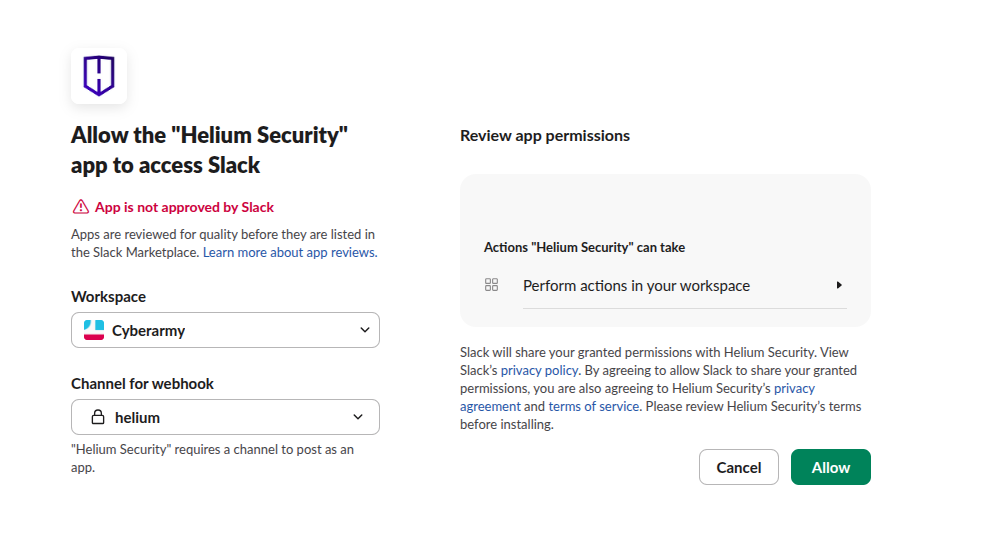
You will be redirected to Slack’s authorization page, where you will be asked to select the workspace you want to integrate with Helium Security. Review the requested permissions, then click Allow to proceed.
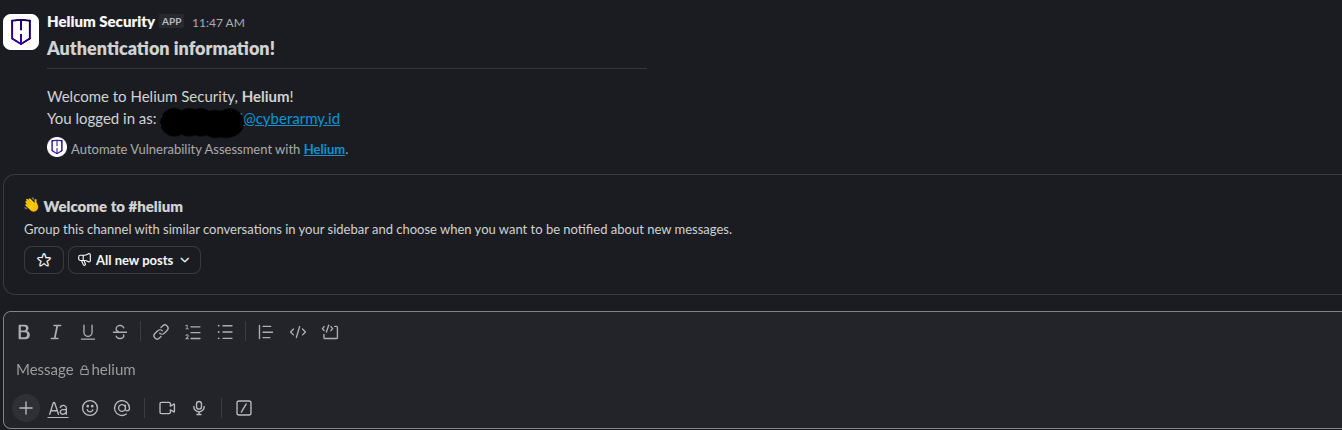
Once Helium Security is added to one of your public channels, you will be redirected back to your workspace. In the selected channel, you’ll see a welcome message indicating that Helium Security has been successfully added
If the integration is successful, Helium Security will return a list of available commands. You can type
/helpto view all supported commands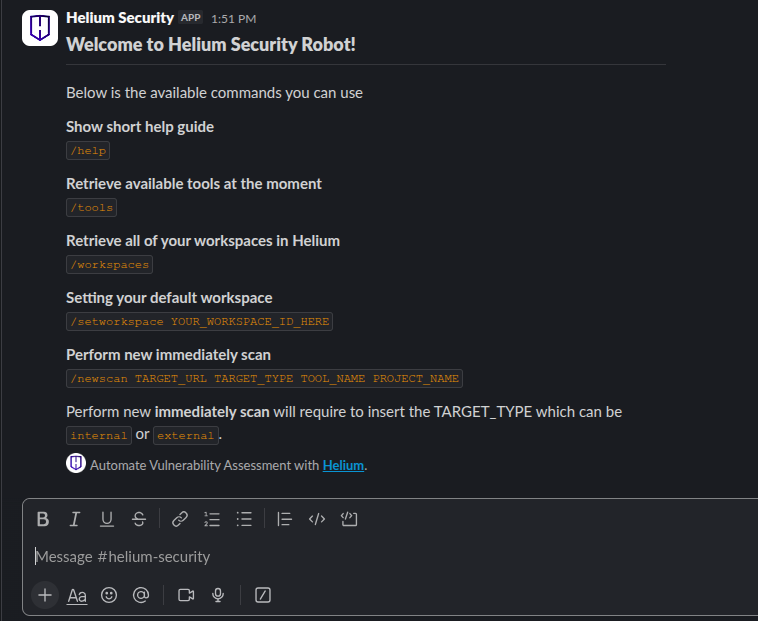
Type
/toolsto see the available tools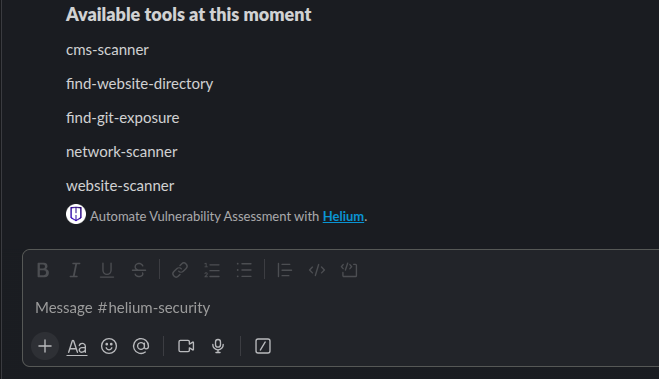
Type
/workspacesto see the available workspaces note
noteThe checkmark indicates the currently active workspace.
Type
/setworkspace <workspace_id>to set the workspace
Type
/getworkspaceto see the current workspace
Type
/newscan <target> <target_type> <tool_name> <project_name>to start a new scan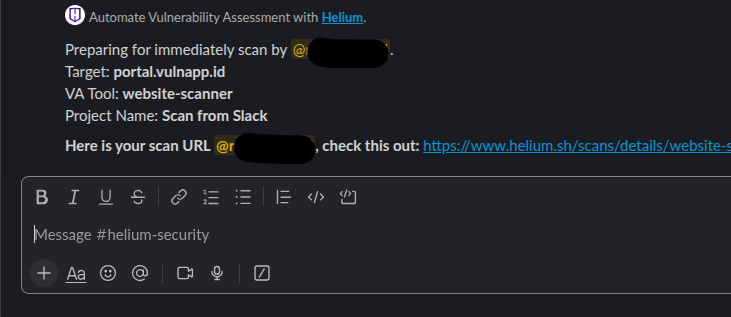 note
note- To verify that the scan is in progress, please access the Helium web and review the designated workspace configured at the time the scan was started
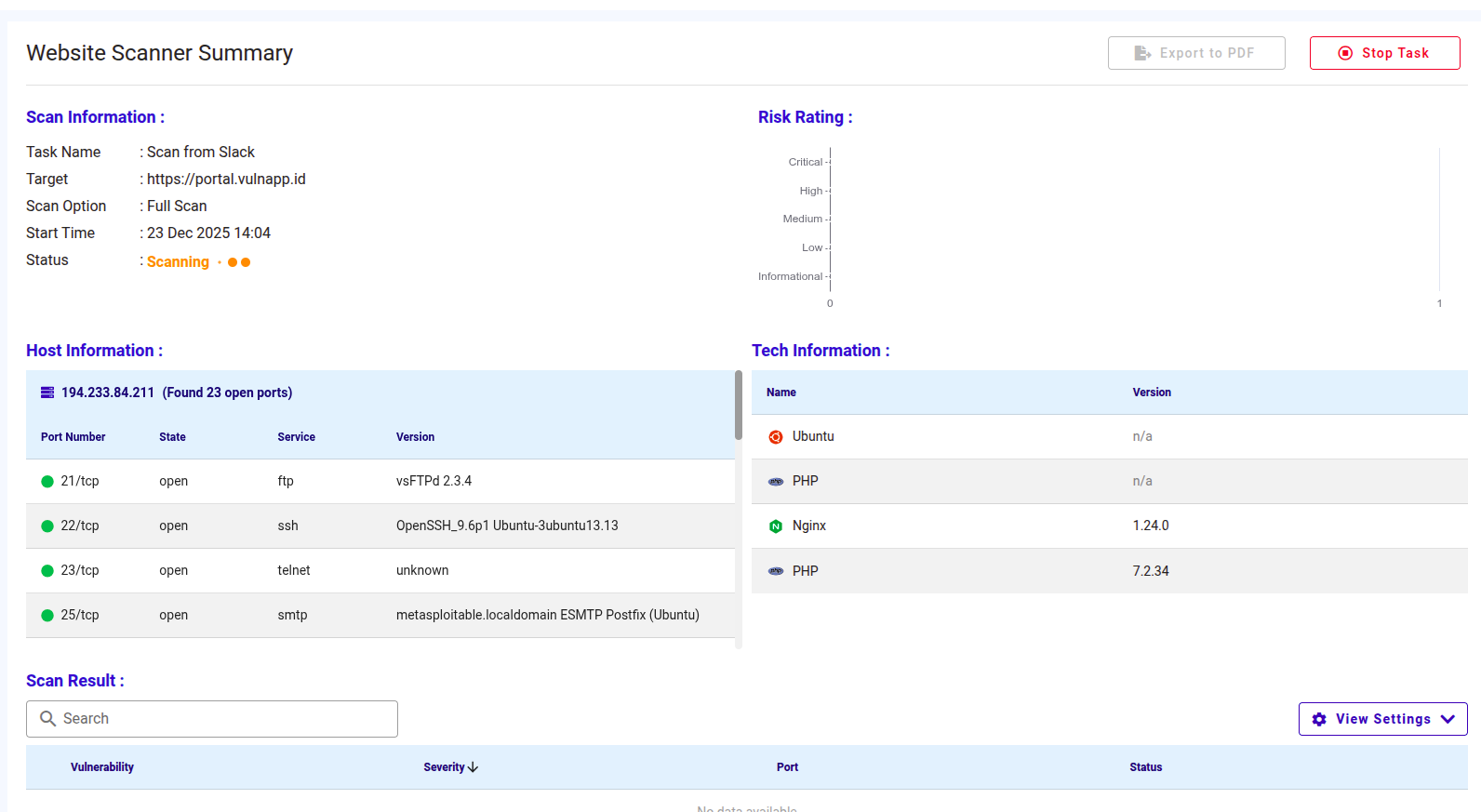
- Once the scanning process is complete, you will receive a notification on Slack

- To verify that the scan is in progress, please access the Helium web and review the designated workspace configured at the time the scan was started